Rulesets
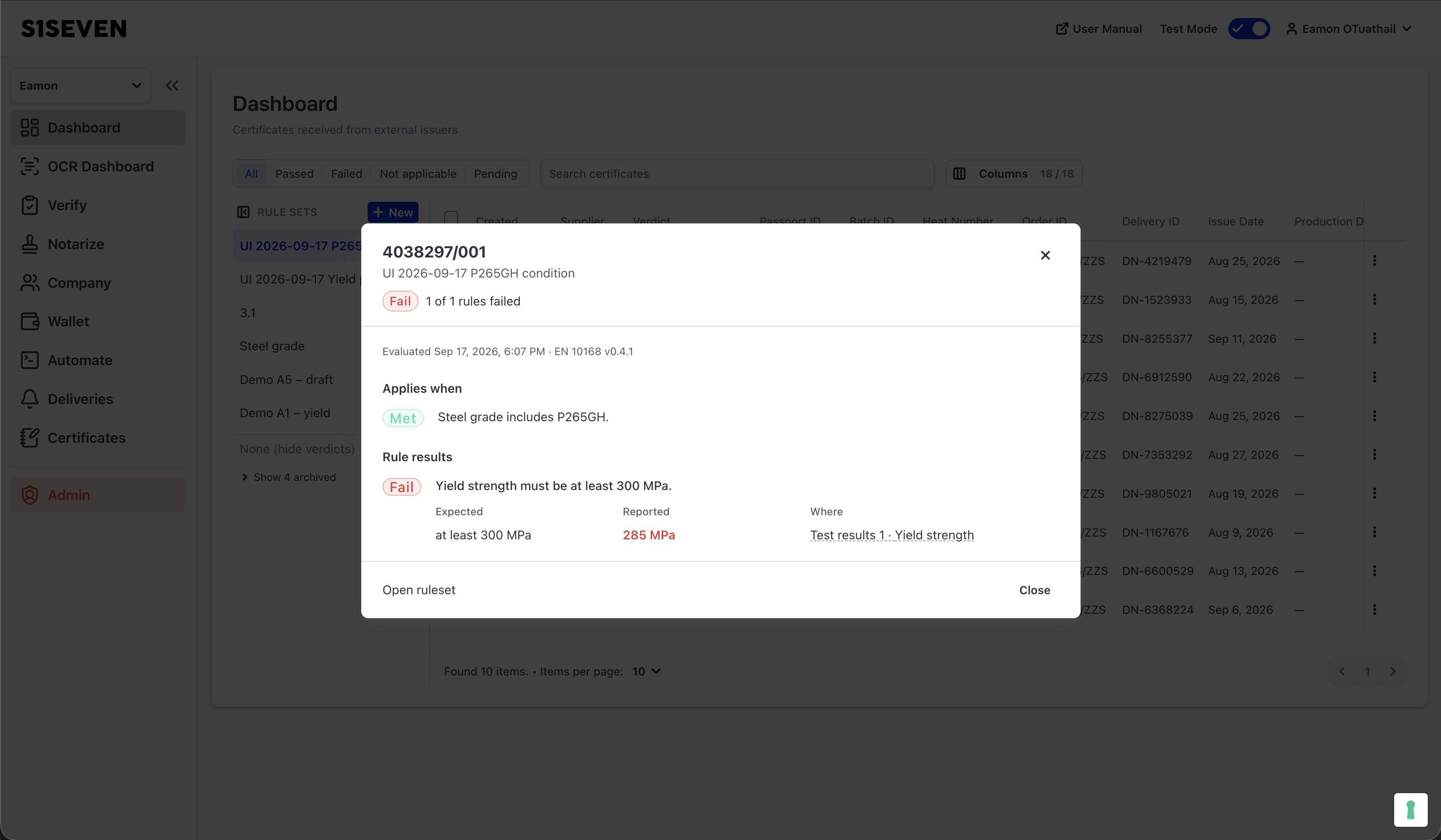
Rulesets check received certificates automatically against your own acceptance requirements. You manage them from the Dashboard, in the Rule sets panel on the left. Each certificate gets a separate result for each ruleset: Pass, Fail or Not applicable.
Understand Rulesets, Rules and Conditions
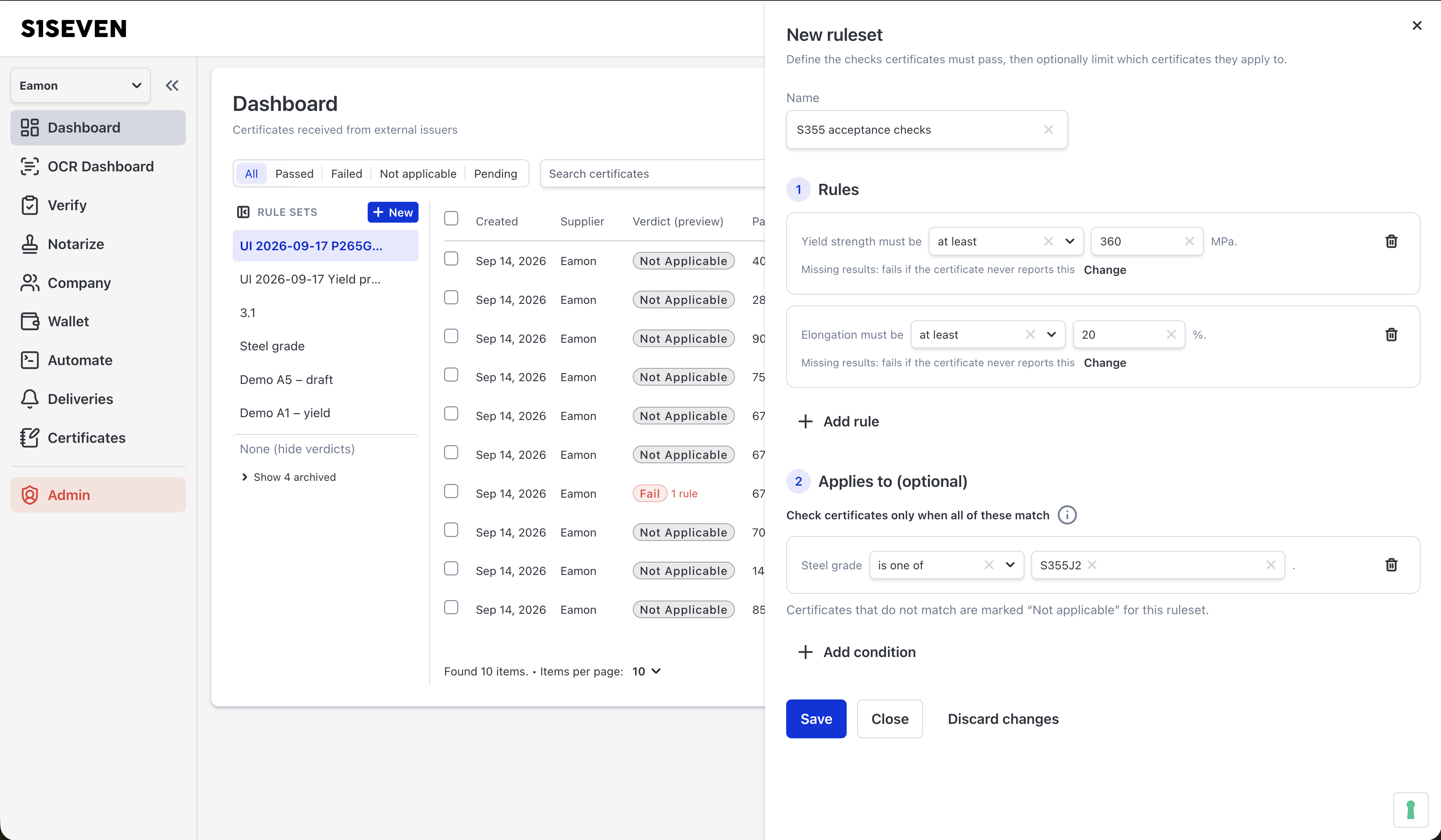
A ruleset groups the checks you want to make on received certificates. For example, a ruleset named S355 acceptance checks could apply only to S355J2 and S355K2 steel and require a yield strength of at least 355 MPa. The steel grades are the condition. The minimum yield strength is the rule.
A saved ruleset checks certificates immediately.
Rules
A rule is one requirement the certificate must meet, written as a sentence. For example:
- Yield strength must be at least 355 MPa.
- Chemical element C must be at most 0.20 %.
- Certificate type must contain 3.1.
For each rule, choose what to check, how to compare it (for example at least) and the required value. A certificate passes the ruleset only if it meets every rule.
Each rule also says what happens if the certificate does not report the value anywhere: the certificate fails, or the rule does not apply.
A certificate can contain several sets of test results. Rules that check test results, such as yield strength, are checked against each set. These rules have a second choice: what happens if one set of test results does not report the value. Both choices appear after the requirement.
Conditions
A condition limits which certificates a ruleset checks. Without conditions, a ruleset checks all received certificates. Conditions can use the steel grade, product norm, form, certificate type or batch identifier, for example:
- Steel grade is one of S355J2, S355K2.
- Certificate type contains 3.1.
Every condition must match before the rules are checked. With both conditions above, a certificate must name S355J2 or S355K2 and its certificate type must contain 3.1. Otherwise its result for this ruleset is Not applicable, not Fail. For example, a certificate for C45 steel is not checked against your S355 requirements.
TIP
Uppercase and lowercase letters count as different: S355J2 does not match s355j2. Use contains when the text only needs to include the value you enter.
Create a Ruleset
Open the Dashboard and click New at the top of the Rule sets panel. The editor opens beside the certificate list.
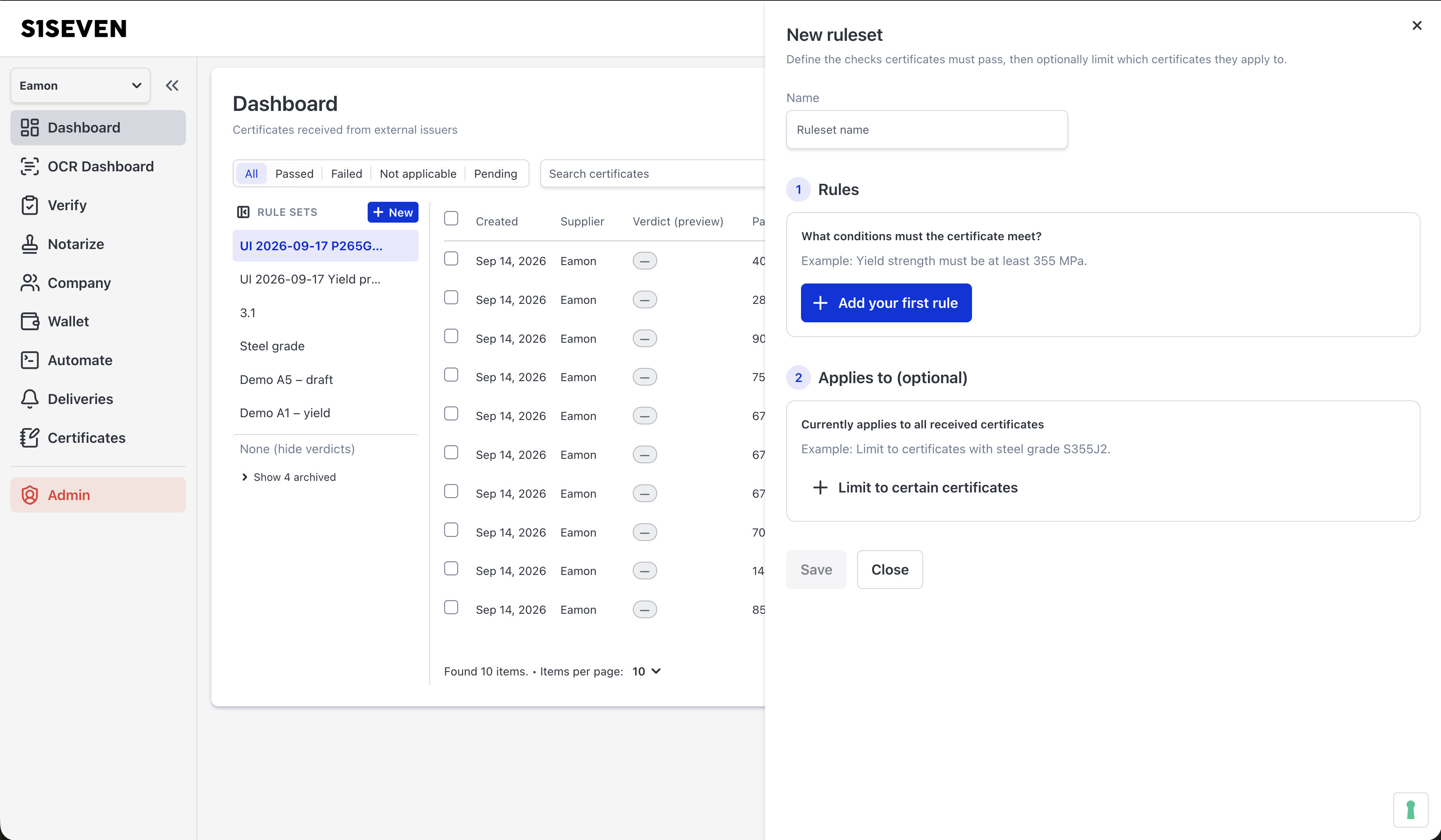
Enter a name.
Click Add your first rule and pick a field.
Choose how to compare the field and enter the required value.
Choose what should happen if the certificate does not report the value. For rules that check test results, also choose what should happen if one set of test results does not report the value.
To add another rule, click Add rule and repeat these choices.
To limit which certificates are checked, click Limit to certain certificates and pick a field. Complete the sentence. The editor suggests values from your received certificates. Click Add condition for further conditions.
Click Save.
While you edit, the Verdict (preview) column shows the result each certificate on the current page would get with your changes. Your changes do not affect saved results until you click Save. The Verdict filter still uses the saved results.
Edit a Ruleset
- Open the ruleset's menu in the Rule sets panel and click Edit.
- Make your changes.
- Click Save.
If you change the rules or conditions, every received certificate is checked again.
Unsaved edits are kept when you close the editor. A Draft tag marks these edits in the Rule sets panel. Open the editor again to continue editing. Click Discard changes to return to the saved ruleset.
TIP
Refreshing the page keeps your unsaved edits. Closing the browser tab that contains the Dashboard loses them. Click Save first if you want to keep your changes.
Duplicate a Ruleset
- Open the ruleset's menu in the Rule sets panel.
- Click Duplicate. A copy named Copy of … opens in the editor.
- Make your changes and click Save.
Archive a Ruleset
Open the ruleset's menu and click Archive. You can also click Archive at the bottom of the editor. Archived rulesets no longer check certificates. Their results are removed from the Dashboard.
You cannot edit an archived ruleset. To use it again:
- Click Show archived at the bottom of the Rule sets panel.
- Open the ruleset's menu and click Edit.
- Click Activate.
View Results on the Dashboard
- Open the Dashboard
- Click a ruleset in the Rule sets panel
To hide the Verdict column, click None (hide verdicts).
The Verdict column shows each certificate's result for the selected ruleset. Beside Fail, the number shows how many rules failed. Use the Verdict filter to show only certificates with a particular result.
Pending means the result is not ready yet. After you change a ruleset, certificates show Pending while they are checked again.
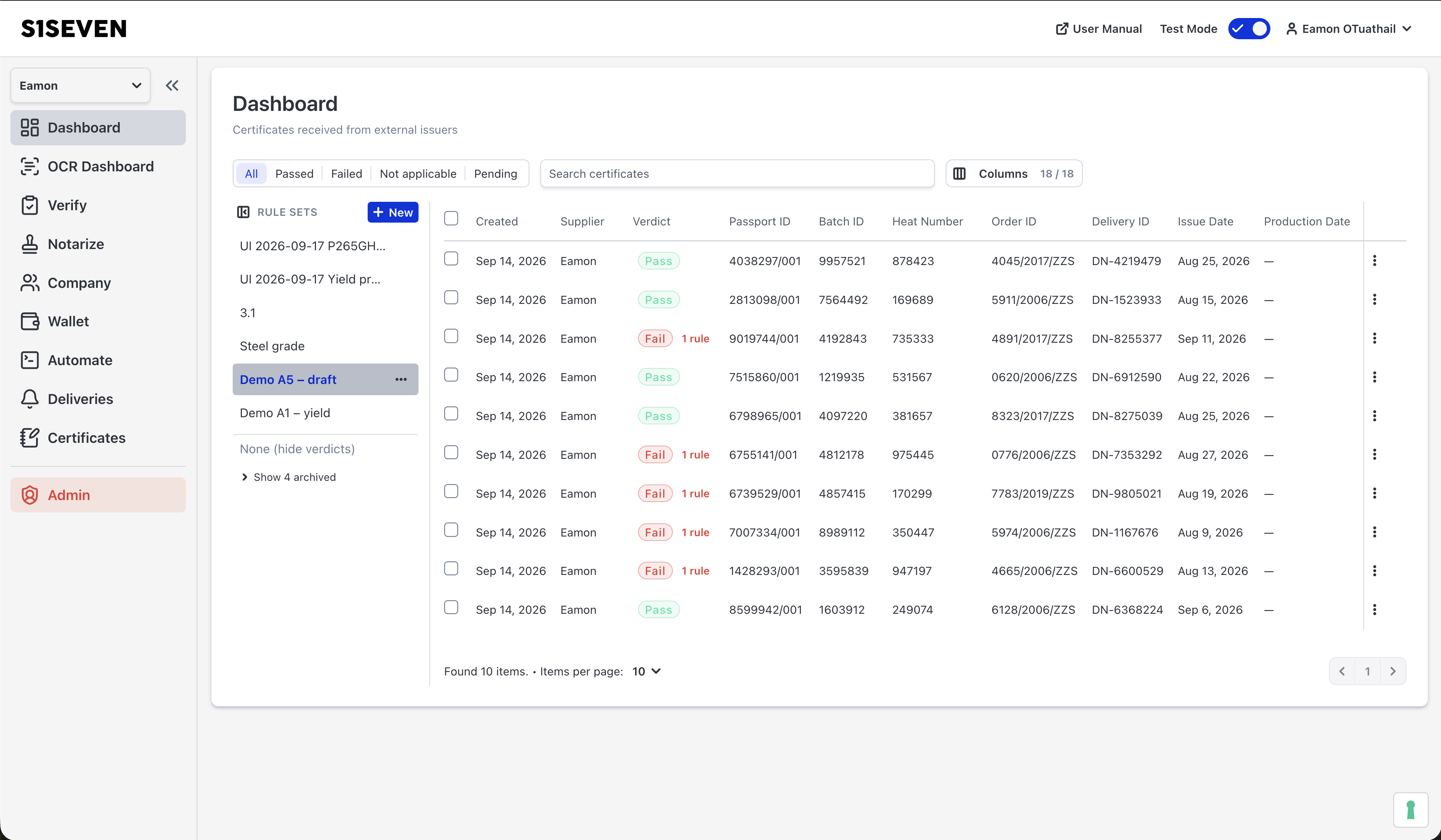
Click a certificate's verdict to open the ruleset results. The dialog lists each rule with its outcome and, for failed rules, the value the certificate reports. If the ruleset has conditions, an Applies when section shows whether each condition was met. Click Open ruleset to edit the ruleset.