Schema Builder
A schema defines the fields a certificate contains and the rules for checking their values. You build the schema, preview the certificate form, publish the schema, and assign it to the companies that will create certificates from it.
In This Section
- Field Types: the field types you can add and their settings
- Validation Rules: set which values a field accepts, always or only under a condition
- Conditional Properties: show a field only when other fields have certain values
- Global Rules: rules that check several fields across the whole certificate
- Duplicating Fields: copy a field
- Siblings: link fields so they share the same structure
- Publishing a Schema: make a schema available for use
- Assigning Schemas to Companies: control who can use a schema
Access the Schema Builder
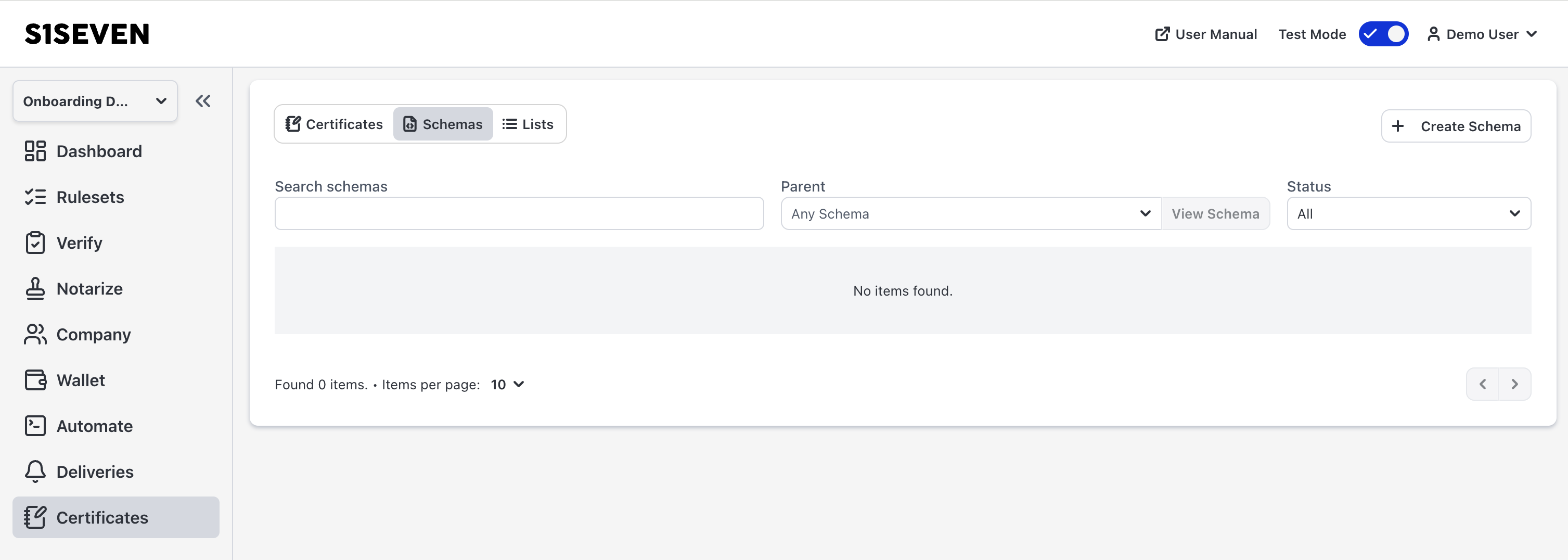
The Schema Builder is available under Certificates › Schemas. The Certificates area has three tabs:
- Certificates: create, notarize, and manage certificates. See Notarize Certificates for issuing and Certificate Receivers for verifying.
- Schemas
- Lists (see Schema Lists)
Create a Schema
Click Create Schema, enter a name, and optionally choose a parent schema.
Working in the Builder
- The + button adds a Text field. Change its type with the type switcher at the top of the configuration panel.
- Group, List, All Of, and One Of are containers. To add a field inside one, open the container's actions menu (⋯) and choose Add … for the type you want.
- The settings button above the field tree opens settings for the whole schema: global rules and the raw JSON.
- The builder shows your changes immediately, but they are only stored when you click Save.
Preview a Schema
The actions menu (⋮) in the top right of the builder holds the preview and the other actions for the open schema.
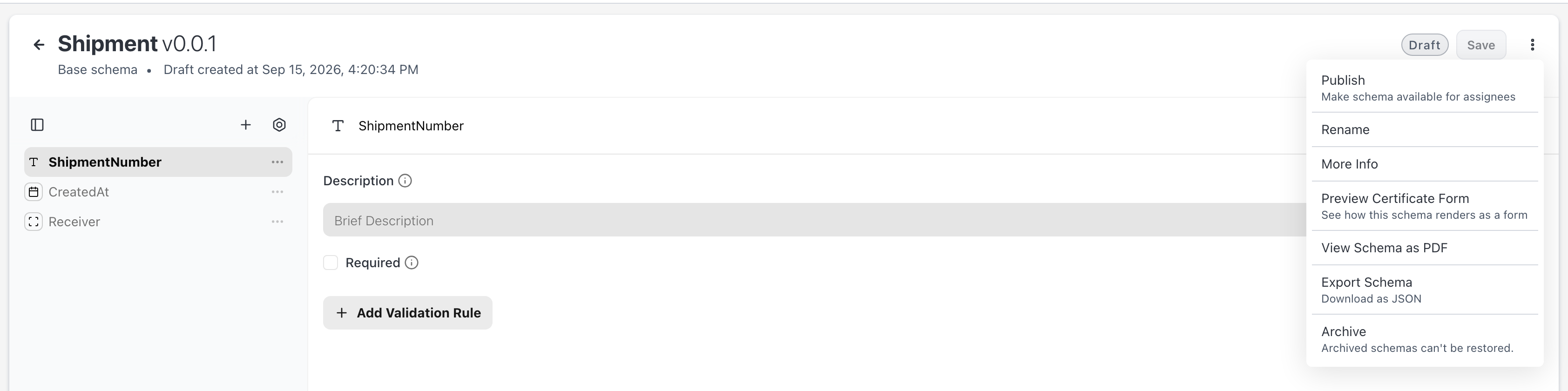
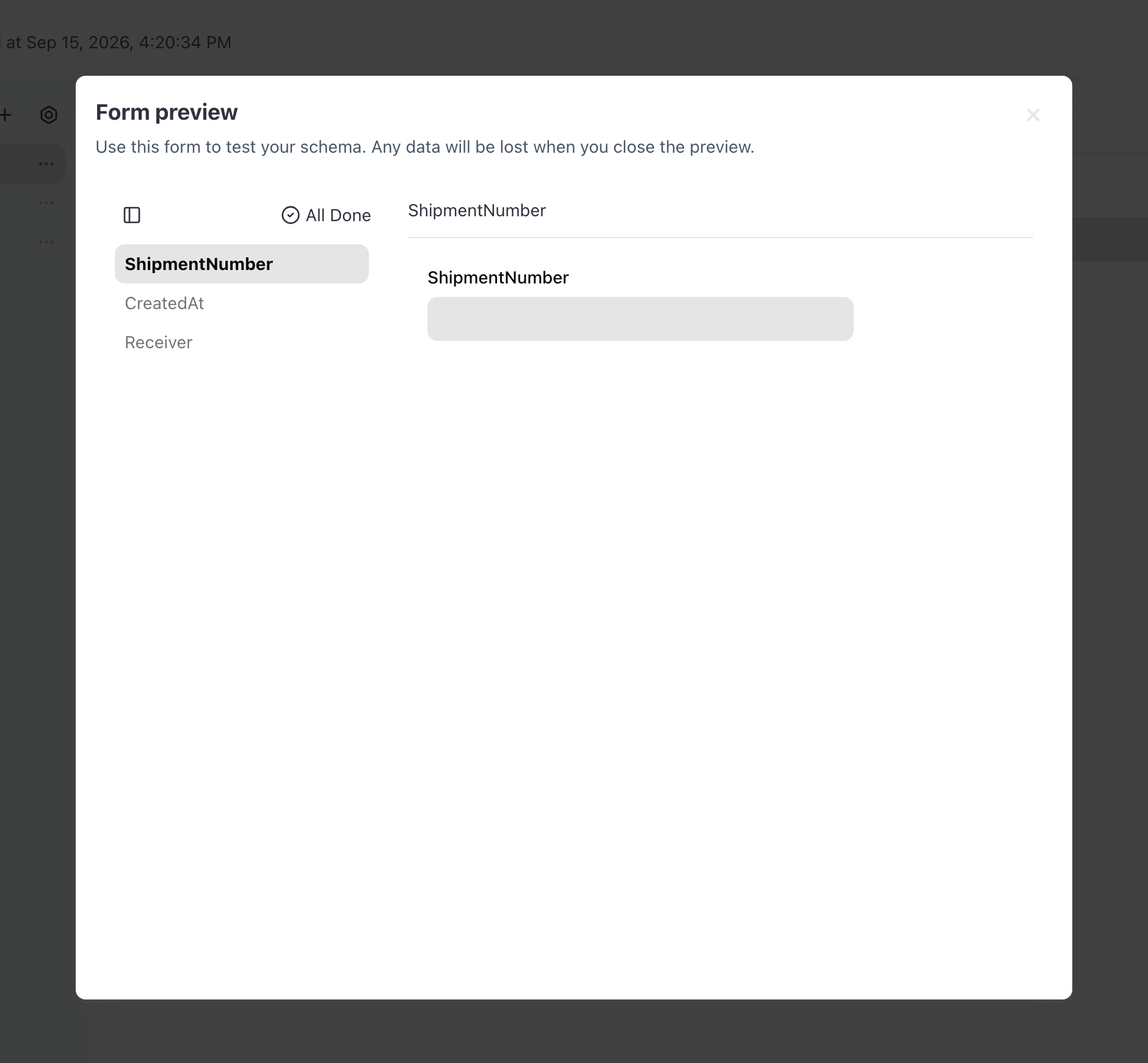
Preview Certificate Form opens a certificate form based on your schema for testing data entry. Nothing you type in the preview is stored. View Schema as PDF shows how a certificate created from the schema looks as a PDF.
Manage Schemas
The actions menu (⋮) of a schema in the list holds the actions below.
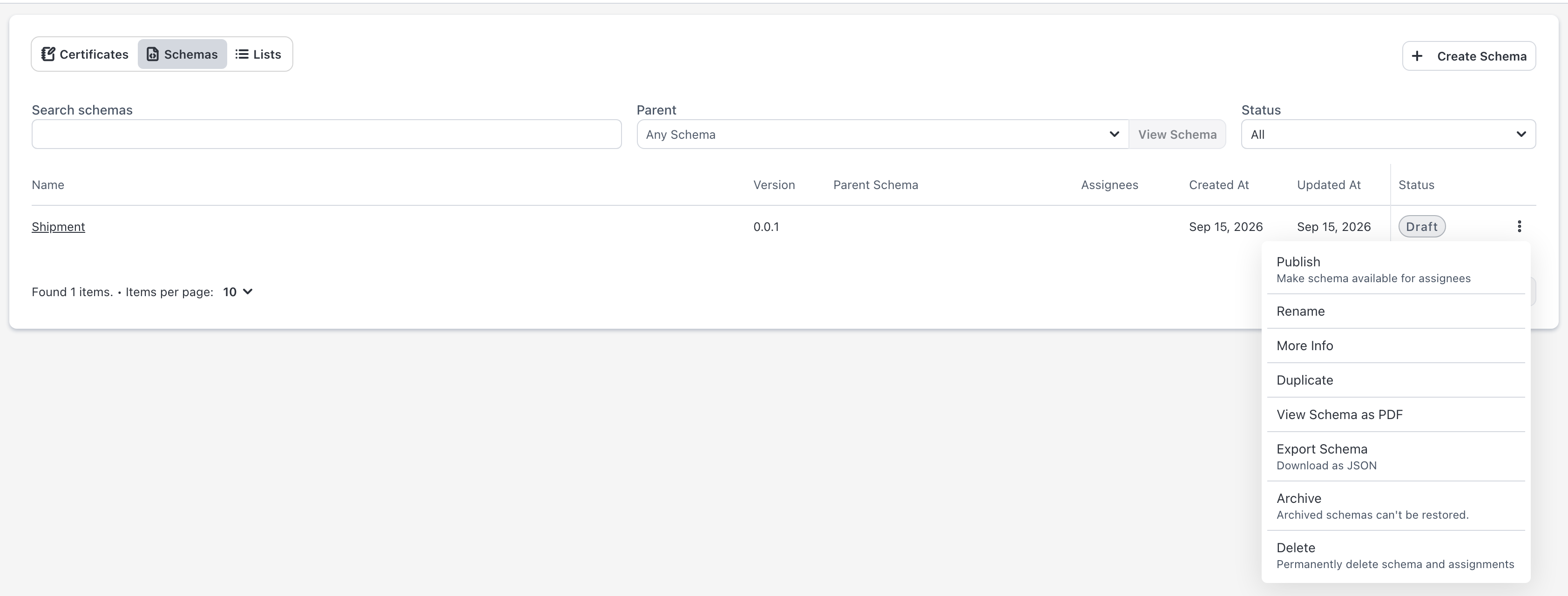
- Versions: each schema has a version number, such as
0.0.1. Duplicate creates a new version. This is a suggested approach how to change a schema after it's been published. - Child schemas: a child schema is linked to a parent schema. View Children lists all children of a schema.
- Archive: retires a schema. It can no longer be used to create certificates or child schemas. Archiving cannot be undone.
- Delete: removes a schema entirely. Only possible while no certificates have been created from it.
View the JSON Schema
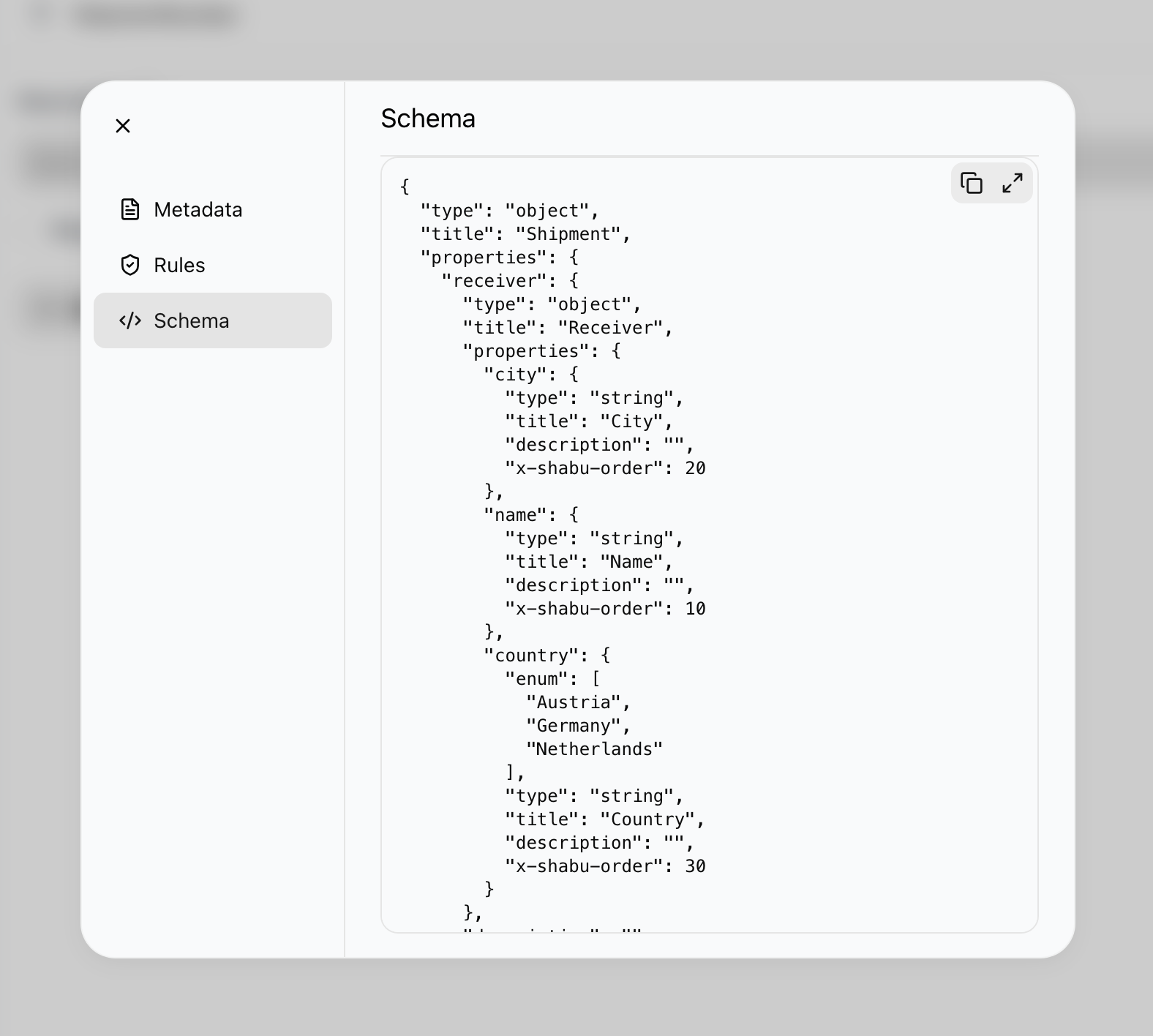
To see the full schema as JSON, click the settings button above the field tree and open the Schema tab.